Canva Coach Playbook: Quick and Easy One-Page Diagrams For Popular Tasks in Canva - Digital Download
Canva Coach Playbook: Quick and Easy One-Page Diagrams For Popular Tasks in Canva - Digital Download
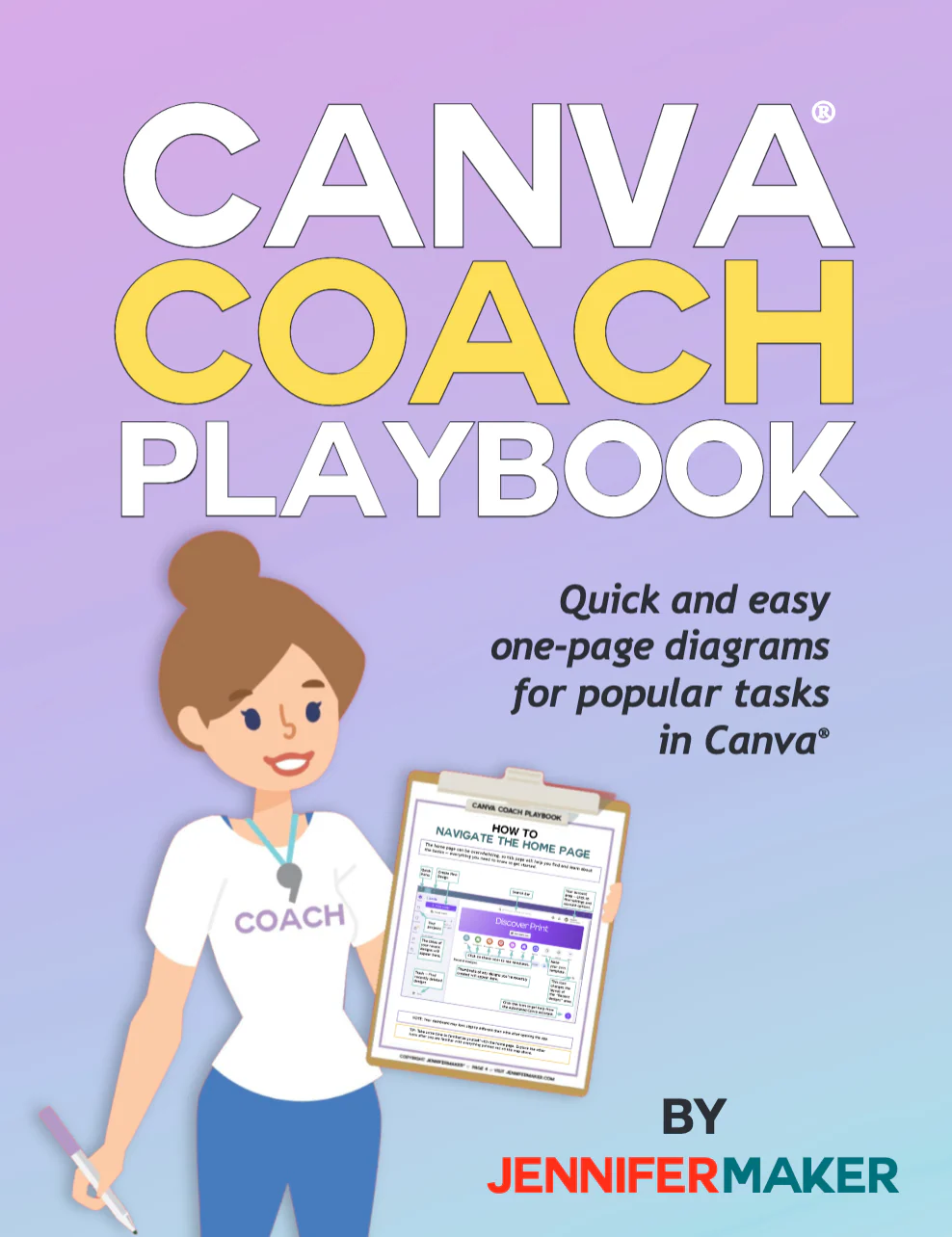
The Canva Coach Playbook is your go-to visual guide for mastering popular tasks in Canva®. With clear, step-by-step instructions, you can follow along effortlessly and start creating with confidence.
This digital playbook contains 100+ full-color pages with easy step-by-step instructions for all the popular tasks you can do in Canva, including:
- What Exactly Is Canva?
- What Can You Do With Canva?
- Canva Free vs Pro
- How to Open Canva in a Web Browser
- How to Install and Open the Canva App on Mac/Windows
- How to Open Canva in Your Browser
- How to Find What You Need on the Home Page
- How to Start a New Design from a Template
- How to Name Your Projects
- How to Find Your Tools on the Design Page
- How to Use the Design Toolbar
- How to Keep Your Design Aligned with Rulers & Guides
- How to Align Elements for a Clean Layout
- How to Stack and Arrange Layers
- How to Find and Use Pre-Made Templates
- How to Make a Custom Size Template
- How to Apply a Pre-Made Design Template
- How to Resize Your Design If You Need a Different Size
- How to Add and Duplicate Pages in Your Design
- How to Quickly Change the Look of Your Design
- How to Match Colors and Fonts with Canva Styles
- How to Apply a Background to Your Canvas
- How to Find and Use Design Elements
- How to Search Smarter for Graphics and Images
- How to Shape Your Images with Frames
- How to Add Eye-Catching Graphics to Your Design
- How to Choose the Right Photos for Your Design
- How to Use Shapes to Enhance Your Layouts
- How to Find and Use Videos
- How to Edit and Enhance Videos
- How to Add Audio to Your Projects
- How to Make Your Designs Look Real with Mockups
- How to Create Charts to Visualize Data
- How to Arrange Photos and Elements with Grids
- How to Find Curated Element Curations
- How to Add Stickers for Fun Designs
- How to Group Multiple Elements Together
- How to Resize Elements to the Size You Need
- How to Rotate Elements for the Perfect Look
- How to Crop Elements and Images to Fit Your Design
- How to Adjust Element Transparency for a Cool Look
- How to Make Your Design Stand Out with Animation
- How to Find and Use Text Tools
- How to Add and Resize Text Boxes to Fit Your Text
- How to Pick and Change Fonts for the Right Look
- How to Adjust Text Alignment and Spacing
- How to Easily Style Your Text
Instructions are available for desktop (Mac/Windows) and mobile (iPad/iPhone/Android), and each page is color-coded to the platform so you can find the page you need fast.
This Playbook was last updated in February 2025 and covers all of the latest Canva changes!
Please note that this is an instant digital download (nothing will be shipped).
Original: $19.00
-70%$19.00
$5.70Canva Coach Playbook: Quick and Easy One-Page Diagrams For Popular Tasks in Canva - Digital Download
The Canva Coach Playbook is your go-to visual guide for mastering popular tasks in Canva®. With clear, step-by-step instructions, you can follow along effortlessly and start creating with confidence.
This digital playbook contains 100+ full-color pages with easy step-by-step instructions for all the popular tasks you can do in Canva, including:
- What Exactly Is Canva?
- What Can You Do With Canva?
- Canva Free vs Pro
- How to Open Canva in a Web Browser
- How to Install and Open the Canva App on Mac/Windows
- How to Open Canva in Your Browser
- How to Find What You Need on the Home Page
- How to Start a New Design from a Template
- How to Name Your Projects
- How to Find Your Tools on the Design Page
- How to Use the Design Toolbar
- How to Keep Your Design Aligned with Rulers & Guides
- How to Align Elements for a Clean Layout
- How to Stack and Arrange Layers
- How to Find and Use Pre-Made Templates
- How to Make a Custom Size Template
- How to Apply a Pre-Made Design Template
- How to Resize Your Design If You Need a Different Size
- How to Add and Duplicate Pages in Your Design
- How to Quickly Change the Look of Your Design
- How to Match Colors and Fonts with Canva Styles
- How to Apply a Background to Your Canvas
- How to Find and Use Design Elements
- How to Search Smarter for Graphics and Images
- How to Shape Your Images with Frames
- How to Add Eye-Catching Graphics to Your Design
- How to Choose the Right Photos for Your Design
- How to Use Shapes to Enhance Your Layouts
- How to Find and Use Videos
- How to Edit and Enhance Videos
- How to Add Audio to Your Projects
- How to Make Your Designs Look Real with Mockups
- How to Create Charts to Visualize Data
- How to Arrange Photos and Elements with Grids
- How to Find Curated Element Curations
- How to Add Stickers for Fun Designs
- How to Group Multiple Elements Together
- How to Resize Elements to the Size You Need
- How to Rotate Elements for the Perfect Look
- How to Crop Elements and Images to Fit Your Design
- How to Adjust Element Transparency for a Cool Look
- How to Make Your Design Stand Out with Animation
- How to Find and Use Text Tools
- How to Add and Resize Text Boxes to Fit Your Text
- How to Pick and Change Fonts for the Right Look
- How to Adjust Text Alignment and Spacing
- How to Easily Style Your Text
Instructions are available for desktop (Mac/Windows) and mobile (iPad/iPhone/Android), and each page is color-coded to the platform so you can find the page you need fast.
This Playbook was last updated in February 2025 and covers all of the latest Canva changes!
Please note that this is an instant digital download (nothing will be shipped).
Product Information
Product Information
Shipping & Returns
Shipping & Returns
Description
The Canva Coach Playbook is your go-to visual guide for mastering popular tasks in Canva®. With clear, step-by-step instructions, you can follow along effortlessly and start creating with confidence.
This digital playbook contains 100+ full-color pages with easy step-by-step instructions for all the popular tasks you can do in Canva, including:
- What Exactly Is Canva?
- What Can You Do With Canva?
- Canva Free vs Pro
- How to Open Canva in a Web Browser
- How to Install and Open the Canva App on Mac/Windows
- How to Open Canva in Your Browser
- How to Find What You Need on the Home Page
- How to Start a New Design from a Template
- How to Name Your Projects
- How to Find Your Tools on the Design Page
- How to Use the Design Toolbar
- How to Keep Your Design Aligned with Rulers & Guides
- How to Align Elements for a Clean Layout
- How to Stack and Arrange Layers
- How to Find and Use Pre-Made Templates
- How to Make a Custom Size Template
- How to Apply a Pre-Made Design Template
- How to Resize Your Design If You Need a Different Size
- How to Add and Duplicate Pages in Your Design
- How to Quickly Change the Look of Your Design
- How to Match Colors and Fonts with Canva Styles
- How to Apply a Background to Your Canvas
- How to Find and Use Design Elements
- How to Search Smarter for Graphics and Images
- How to Shape Your Images with Frames
- How to Add Eye-Catching Graphics to Your Design
- How to Choose the Right Photos for Your Design
- How to Use Shapes to Enhance Your Layouts
- How to Find and Use Videos
- How to Edit and Enhance Videos
- How to Add Audio to Your Projects
- How to Make Your Designs Look Real with Mockups
- How to Create Charts to Visualize Data
- How to Arrange Photos and Elements with Grids
- How to Find Curated Element Curations
- How to Add Stickers for Fun Designs
- How to Group Multiple Elements Together
- How to Resize Elements to the Size You Need
- How to Rotate Elements for the Perfect Look
- How to Crop Elements and Images to Fit Your Design
- How to Adjust Element Transparency for a Cool Look
- How to Make Your Design Stand Out with Animation
- How to Find and Use Text Tools
- How to Add and Resize Text Boxes to Fit Your Text
- How to Pick and Change Fonts for the Right Look
- How to Adjust Text Alignment and Spacing
- How to Easily Style Your Text
Instructions are available for desktop (Mac/Windows) and mobile (iPad/iPhone/Android), and each page is color-coded to the platform so you can find the page you need fast.
This Playbook was last updated in February 2025 and covers all of the latest Canva changes!
Please note that this is an instant digital download (nothing will be shipped).